To enable/ disable network bonding using IPMI command, the following demonstration shows a way to install IPMI tool on a CentOS and configure with IPMI commands.
Preparation:
Access to the command line/ terminal window of a CentOS you have installed on the system you wish to configure network bonding.

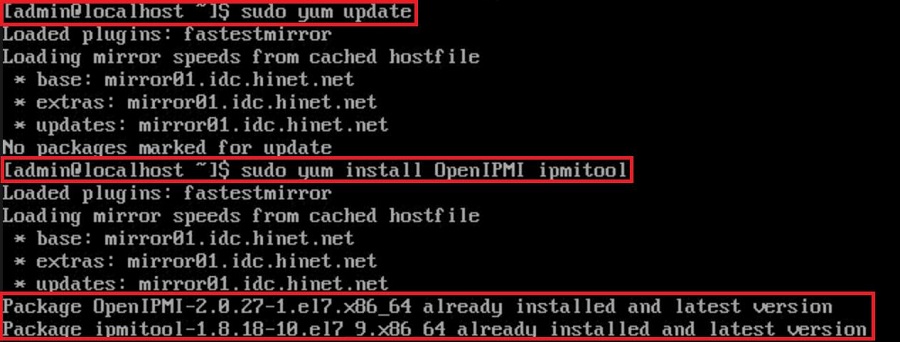
Input “sudo yum update” to update system repositories. Then, install IPMItool on a CentOS or RedHat system by running the command: “sudo yum install OpenIPMI ipmitool”. Wait for the installation to complete. The output should indicate that OpenIPMItool and IPMItool have been installed. You should see the version number of the software installed.
Once you have completed the installation, enable ipmitool access by running the command: “sudo /sbin/chkconfig ipmi on”. Then start the ipmitool service with the command: “sudo service ipmi start”.

Step:
- Now this OS is ready to configure local network bonding. Run:
“sudo ipmitool raw 0x32 0x71 0x1 0x0 0x0 0x1 0x64 0x0 0x3 0x1”
to DISABLE the IPMI bonding on default;
- To ENABLE bonding, it requires two command lines. First input:
“sudo ipmitool raw 0x32 0x71 6 0 3”, then
“sudo ipmitool raw 0x32 0x71 0x1 0x1 0x0 0x1 0x64 0x0 0x3 0x1”
- To check if the bonding is enabled or not, run:
”sudo ipmitool raw 0x32 0x72 0x1 0x0 0x0”
If the output shows “00 00 01 64 00 03 01”, the bonding is disabled.
If it shows “01 00 01 64 00 03 01”, the bonding is enabled instead.
Remote IPMI command:
If you wish to remotely configure network bonding, install ipmitool on both the target system and the one you are running commands on.
The preparations and procedures are basically identical, except that you will have to add some information to the configuring command lines.
That is, for instance, Run:
“sudo ipmitool -I lanplus -H $target_ip -U $username -P $passwd raw 0x32 0x72 0x1 0x0 0x0”
Instead of
”sudo ipmitool raw 0x32 0x72 0x1 0x0 0x0” to check if bonding is enabled.
*Please be advised to fill in the right information on the above section labeled in red.
Done!
Preparation:
1. For the BIOS method, it requires a more up to date motherboard and BIOS combination to include the “Load BMC Default Settings” item in BIOS Server Mgmt page.
2. For IPMI command, it requires a system with properly working BMC functions and IPMItool installed.
A. Load BMC Default settings via BIOS Configuration
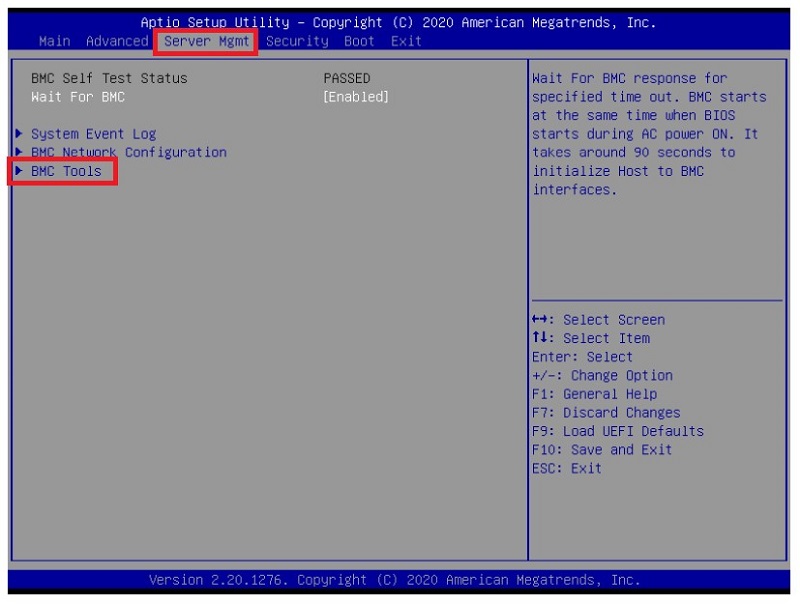
1. Access BIOS page, select “Server Mgmt > BMC Tools”.
*Note that NOT all the motherboards/ BIOS versions include this function.
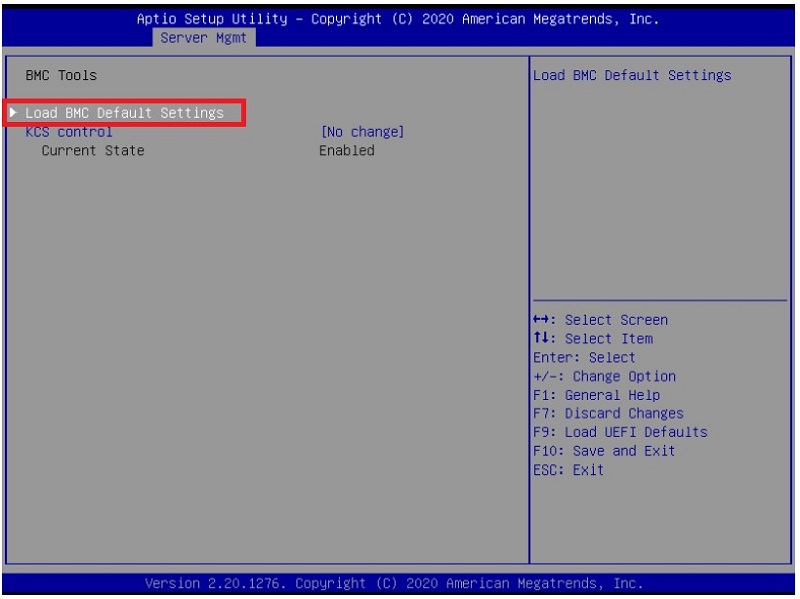
2. Select “Load BMC Default Settings” and confirm the upcoming questions, the procedure shall begin.
B. Load BMC Default Settings via IPMI Command
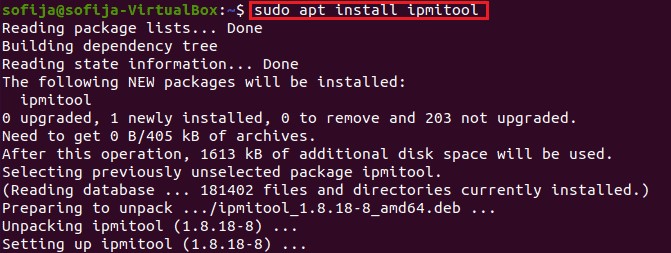
1. Open up an OS terminal, update system repositories and install IPMItool. Take Ubuntu for example, run “sudo apt update” and “sudo apt install ipmitool”.
2. Run “sudo ipmitool raw 0x32 0x66” to load BMC default settings.

3. Once the command is done, reboot the system to reset and complete the reset to the BMC.
C. Load BMC Default by updating to a new version/ same version again
It is rather intuitive to update to a whole new version of BMC or to the same version once again as loading to BMC default settings when the two methods mentioned above are unable to be performed.
Here is how: BMC Firmware Update by socflash
Done!
Preparation
1. Make sure your Altra motherboard / system to adjust fan speed on has a well-functioning BMC, so it can later be configured with ipmitool commands.
2. All fans are properly powered and seated to the motherboard / system so there would not be any unexpected errors.
Also make sure that the fans do have 4-pin or more to support manual speed configuration.
Steps
1. Open up a Linux terminal, update system repositories and install ipmitool. Take Ubuntu for example, run “sudo apt update” and “sudo apt install ipmitool”.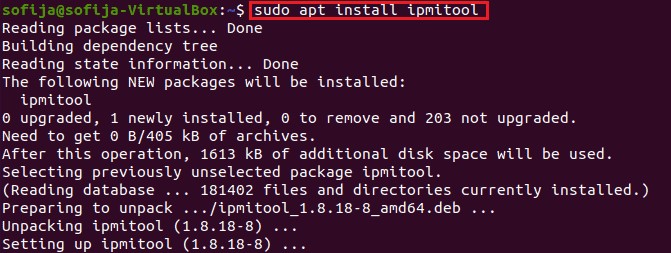
2. All the fans are set to act correspondingly to the CPU temperature by default. To manually configure them, here are some sample commands to apply your designated fan speed:
a. All fans run at full speed:
>> sudo ipmitool raw 0x3a 0x1 0x64 0x64 0x64 0x64 0x64 0x64 0x64 0x64
b. All fans run at half speed:
>> sudo ipmitool raw 0x3a 0x1 0x32 0x32 0x32 0x32 0x32 0x32 0x32 0x32
c. All fans set to default mode (operate based on CPU temperature):
>> sudo ipmitool raw 0x3a 0x1 0x0 0x0 0x0 0x0 0x0 0x0 0x0 0x0
*To set fan speed to a specific value, simply change the 0x64 or 0x32’s above to 0xHexValue. As 64 in hex equals to 100 in decimal, 32 in hex equals to 50. Similarly, apply the hex value of any % fan duty on your demand.
e.g. Use 0x50 for the fans to work at 80% speed.
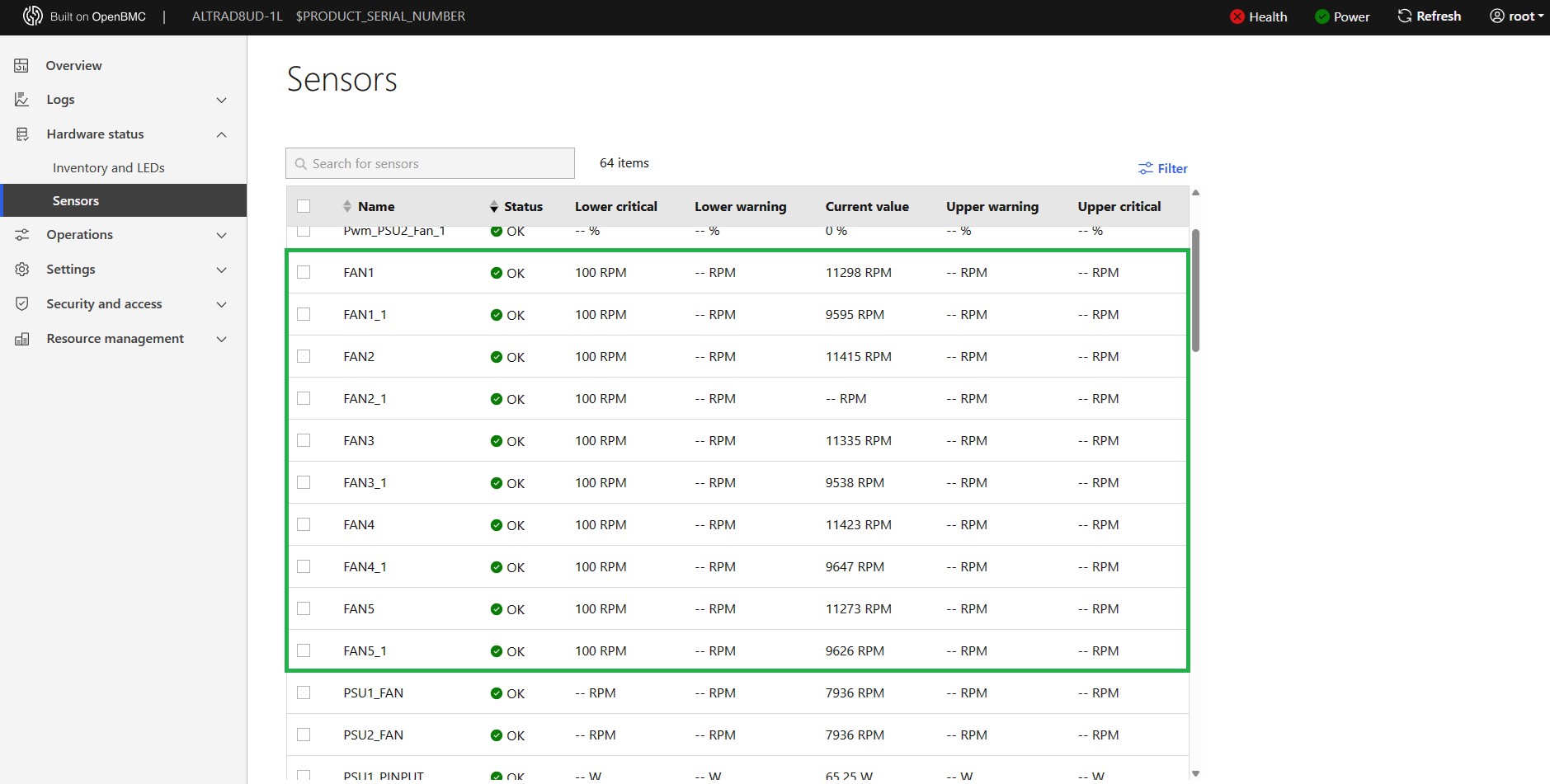
3. To check if the fans are working correctly at the designated speed, check out the OpenBMC WebUI > Hardware status > Sensors, all the fans should be listed with their key information such as Current Speed value, Upper and Lower critical value, etc.