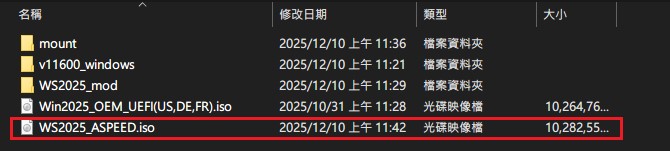
Description:
When installing windows iso with multiple language, sometimes mouse or keyboard has no response. This is caused by the confliction when iKVM try to mount different region input method. And this can be prevented by inject ASPEED driver into windows iso first
1. Download and install Windows ADK for Windows Server 2025
https://learn.microsoft.com/en-us/windows-hardware/get-started/adk-install#download-the-adk-101280001-november-2025
2. Create a folder for making iso with ASPEED driver later Ex: mkdir H:\WS2025_mod
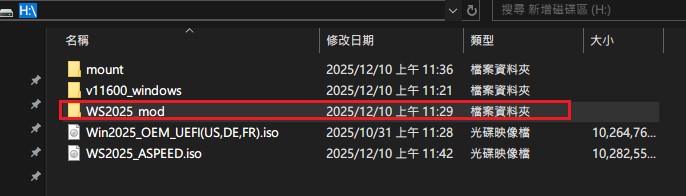
3. Mount your original windows server 2025 iso on computer Ex: mount as I:\
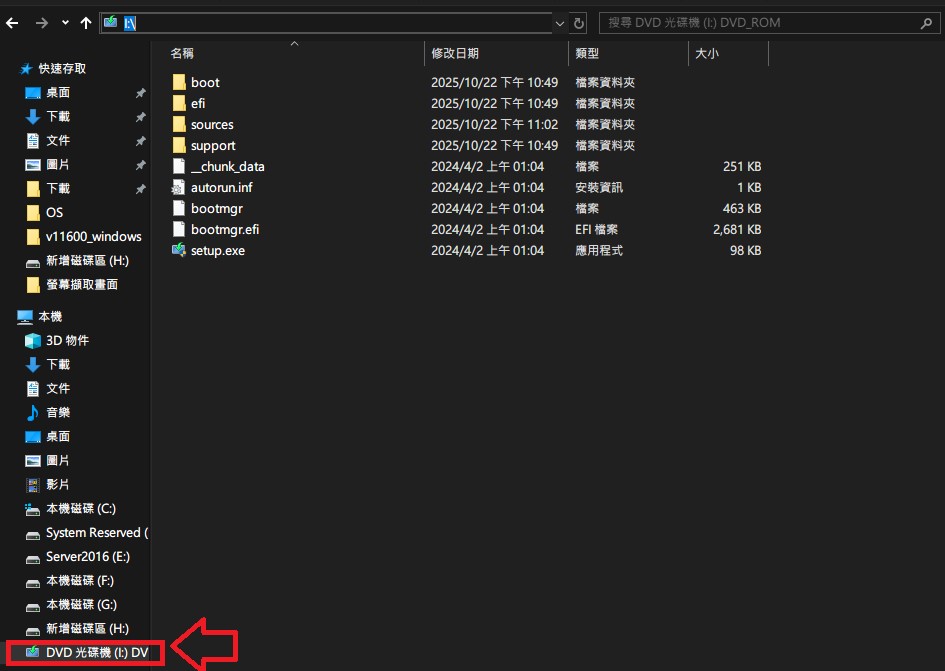
4. Copy all the contents in windows server 2025 iso to temp folder
Ex: Copy all the contents from D:\ to H:\WS2025_mod

5. Check if there is install.wim in C:\WS2025_mod\sources\
P.S if you only find install.esd, then please execute following CMD to transfer install.esd to install.wim
=> dism /mount-wim /wimfile:H:\WS2025_mod\sources\install.wim /index:1 /mountdir:H:\mount

6. Mkdir H:\mount
7. Mount install.wim
=> dism /mount-wim /wimfile:H:\WS2025_mod\sources\install.wim /index:1 /mountdir:H:\mount
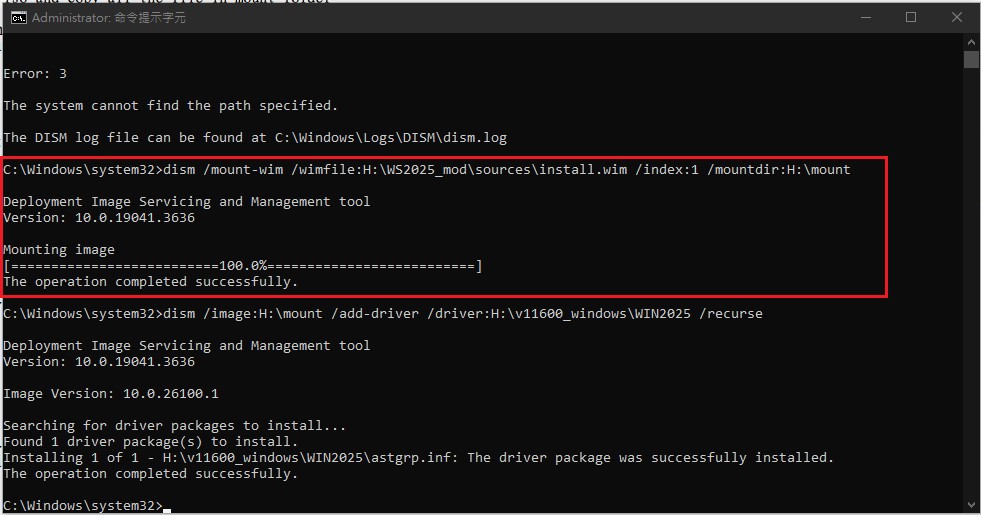
8. Inject ASPEED Driver
Ex: assume your ASPEED driver is at H:\v11600_windows\WIN2025
then please execute CMD
=> dism /image:H:\mount /add-driver /driver:H:\v11600_windows\WIN2025 /recurse
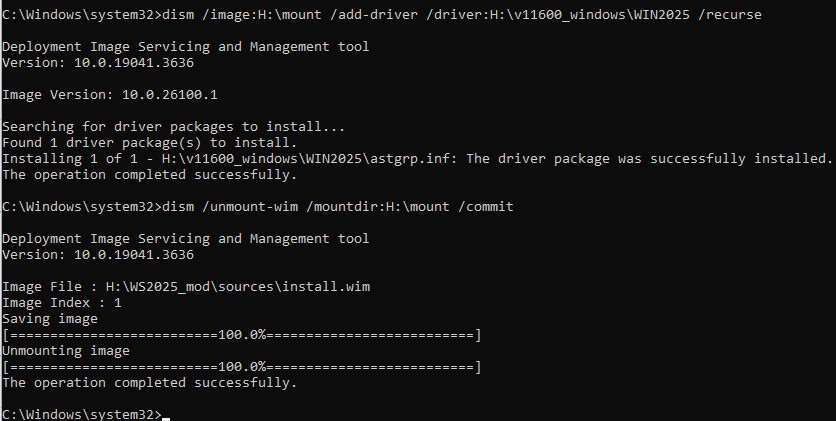
9. umount the temp folder => dism /unmount-wim /mountdir:H:\mount /commit
10. Execute oscdimg in Windows ADK for Windows Server 2025
Ex:
> Open terminal
> cd to C:\Program Files (x86)\Windows Kits\10\Assessment and Deployment Kit\Deployment Tools\amd64\Oscdimg\oscdimg.exe (normally, oscdimg should at this location)
> execute: oscdimg -m -o -u2 -udfver102 H:\WS2025_mod H:\WS2025_ASPEED.iso
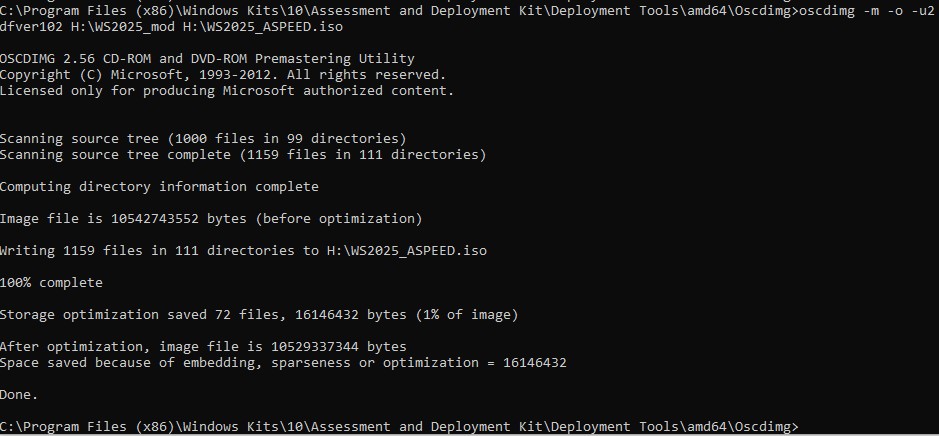
11. new iso should at C:\WS2025_ASPEED.iso