Steps to update BIOS/BMC firmware via OpenBMC
Login page
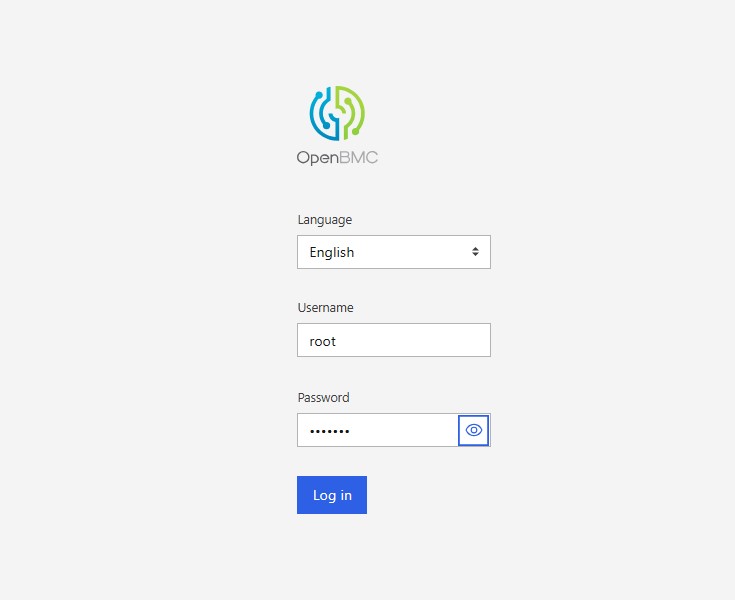
Default Username: root | Password: 0penBmc
BIOS/BMC Firmware Update
- [Operations] -> [Firmware]
This wizard will guide you through the firmware upgrade process.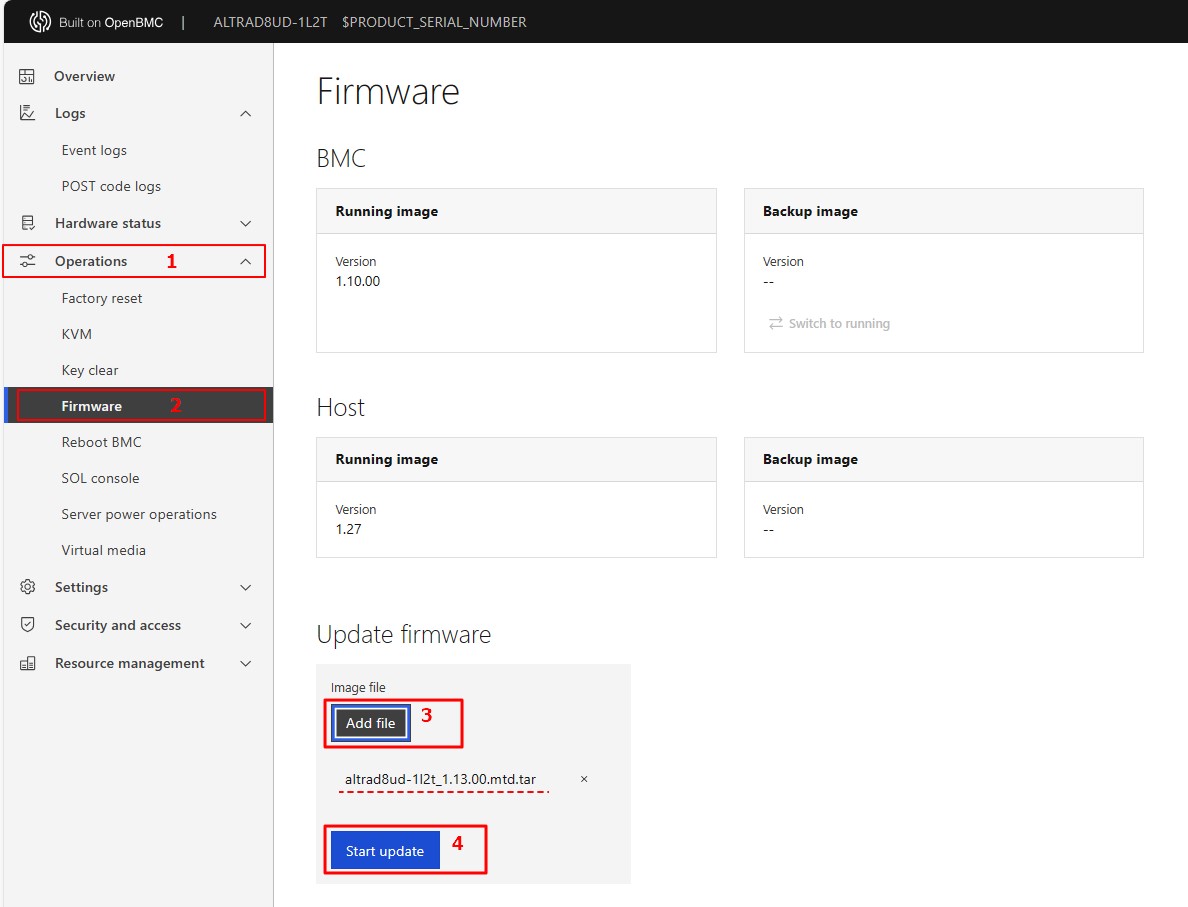
- Click “Add file” to select the BIOS/BMC FW file. Then click “Start update” for the upgrade process.
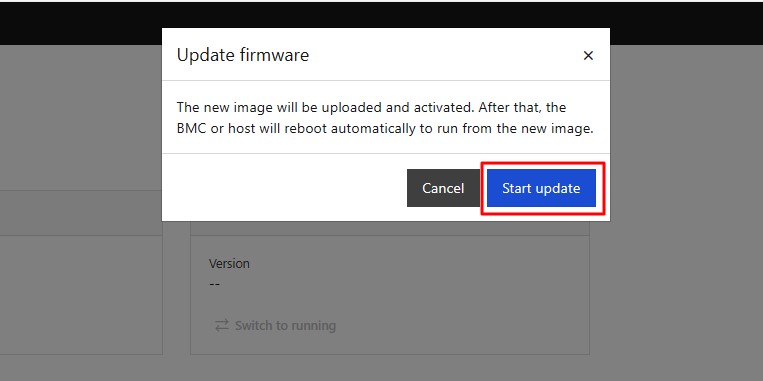
- Click “Start update” to continue the BIOS/BMC FW upgrade process.
- The BIOS/BMC FW upgrade is being processed, please wait for a few minutes.
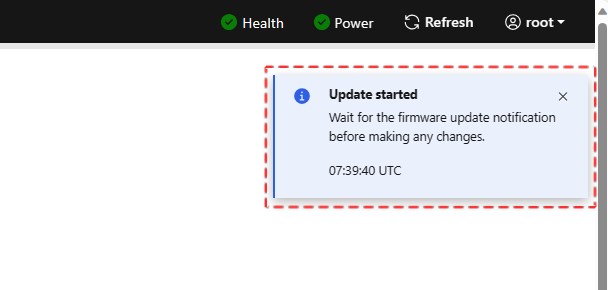
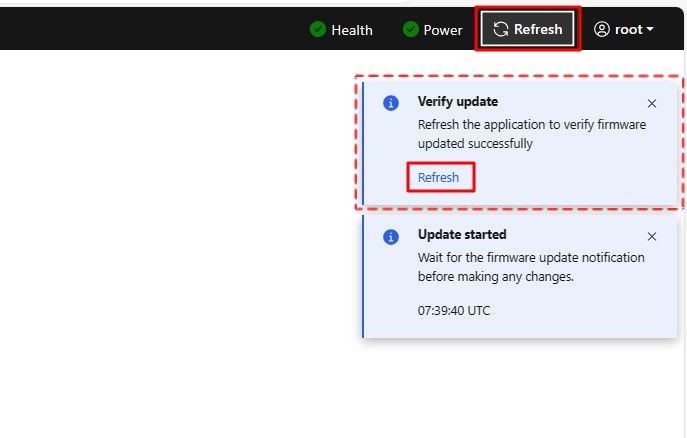
- BIOS/BMC FW upgrade is completed. Click "Refresh" and restart the system.
- Remark:
Clear the browser cookies after the BIOS/BMC FW upgrade is completed.